%20light-mode.png?width=200&height=85&name=SkyFarer%20Design%20Logo%20(910%20x%20510%20px)%20light-mode.png)
Every flight-training relationship generates operational details that normally live in a few places: texts about where to meet, a paper logbook, a spreadsheet of aircraft hours, an instructor's memory of what you flew last time.
The Tracking Dashboard gives both sides of a Skyfarer booking one shared, private home for that: your sessions appear automatically from your bookings, either party can attach the flight details, and aircraft owners get a private registry they can share from selectively.
You'll find it as Dashboard in the signed-in navigation, on desktop and mobile. It has three tabs: As a customer, As a listing author, and Aircraft.
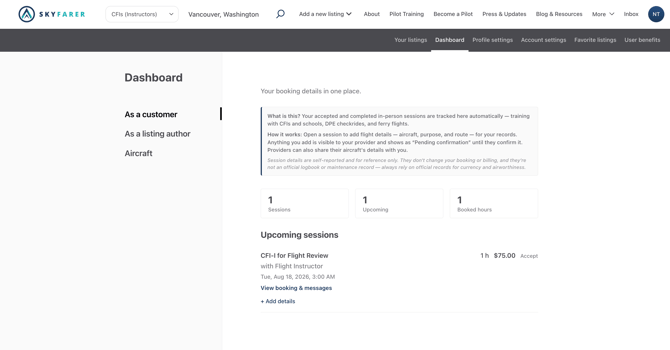
There's nothing to set up. The moment a booking on a training listing — an instructor session, a flight-school lesson, a DPE checkride — is accepted, it shows up as a session card in your dashboard: for the student under As a customer, for the instructor or school under As a listing author.
Completed bookings are there too, split into Upcoming and Past, with summary tiles up top counting your sessions and booked hours.
If you have no accepted bookings yet, the tab says so and points you back to browsing — the dashboard fills itself as you actually train.
2. Adding what you flewOpen any session and hit + Add details. The form is deliberately pilot-shaped:
- Departure and destination airports, plus a Route / Waypoints field (comma-separated ICAO codes for the legs in between)
- Purpose of the flight
- Aircraft — either typed in free-form (tail number, make & model, notes) or, if you're the aircraft's owner, selected from your registry (more below)
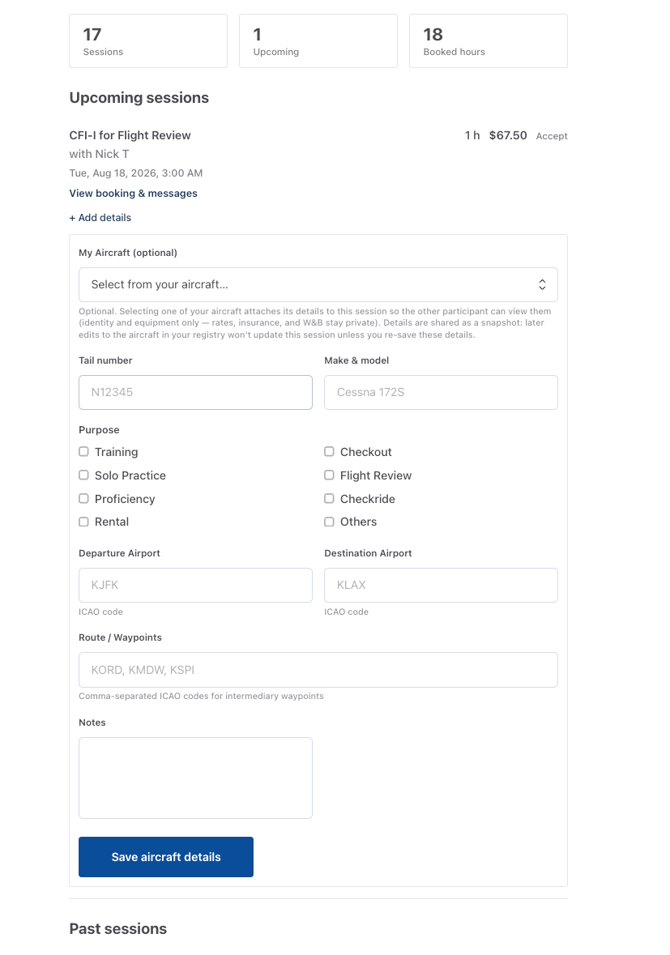
Either side can propose details. When the student fills them in, the card shows Pending confirmation until the instructor taps Confirm details — so the record both parties keep reflects something both parties agreed happened. Details an instructor adds on their own sessions are treated as confirmed.
Two honest disclaimers are built into the page, and worth repeating in the article: session details are self-reported and for reference only — they never change the booking or billing, and they are not an official logbook; pilots should always rely on official records for currency.
3. The Aircraft tab: a private registryThe third tab is for owners — instructors who teach in their own plane, or any pilot organizing their aircraft.
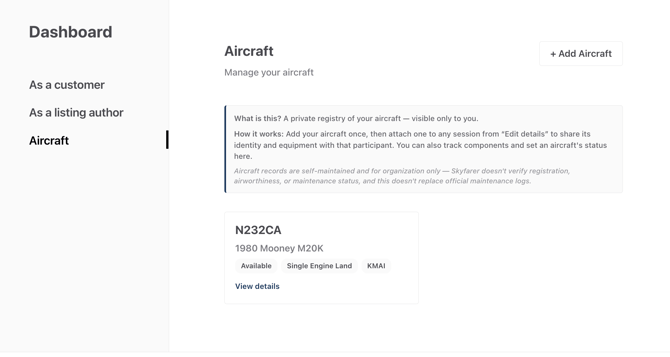
+ Add Aircraft opens a genuinely deep record: tail number, year, serial number, make/model, category and class, seats, base location, capabilities — then the operational layer: wet and dry hourly rates, fuel burn, overnight fee, insurance premium and policy dates, current Hobbs and tach, total time airframe, and per-engine details (make/model, cylinders, hours, TBO, plus propeller hours and TBO).
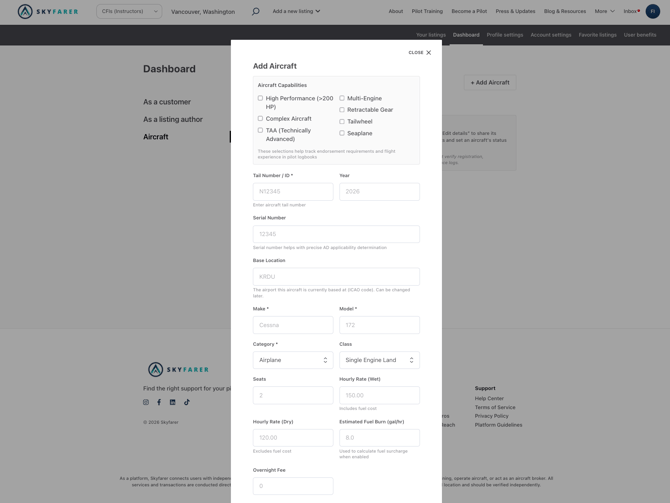
Everything here is visible only to you. The registry is a filing cabinet, not a listing.
4. Selective sharing — the clever partWhen you attach one of your registered aircraft to a session ("My Aircraft" selector in Edit details), the other participant sees a Shared aircraft details card with the aircraft's identity and equipment — but your rates, insurance, and weight & balance always stay private. You share what the student legitimately needs to know about what they flew, without opening your books.
One subtlety users should know: the share is a snapshot taken when you save. If you later update the aircraft's record, previously shared sessions keep the details as they were — the historical record stays true to the day of the flight.
The aircraft disclaimer applies here too: records are self-maintained and for organization only — Skyfarer doesn't verify registration or airworthiness, and this doesn't replace official maintenance logs.
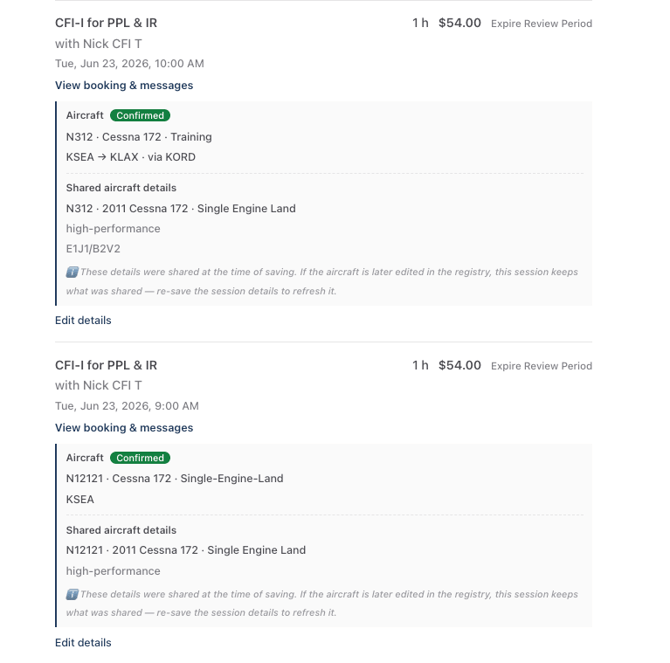
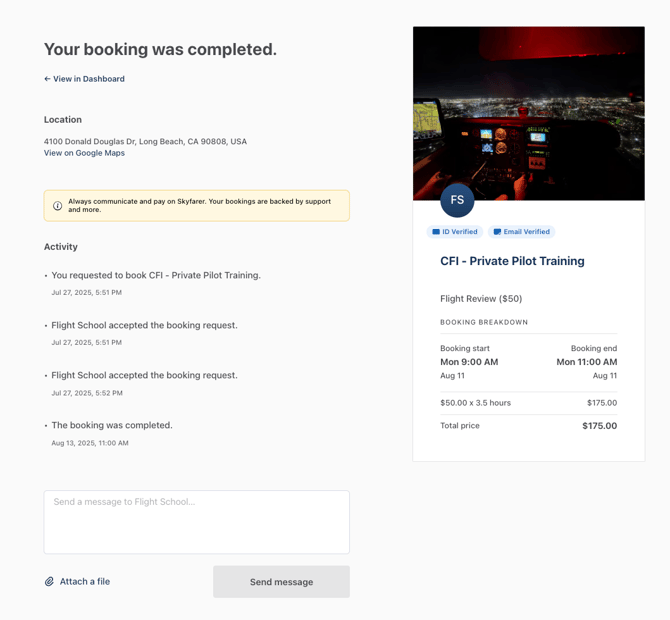
The dashboard isn't a silo: once a booking has moved forward, its transaction page grows a "View in dashboard" link, and dashboard cards link back to the underlying booking — messages, receipts, and reschedules stay one click away from the operational record.